
There’s a special frustration reserved for a laptop that takes five minutes to boot and freezes when you open a second tab. Before assuming it’s time for a new machine, know this: most slow laptops suffer from fixable software and maintenance issues, not finished hardware. The fifteen fixes below run from easiest and most impactful to more involved — many people feel a difference after just the first three or four.
The advice covers both Windows and macOS unless noted, and none of it requires technical expertise. Work through the list in order; each step builds on a cleaner, faster system than the last.
1. Trim Your Startup Programs
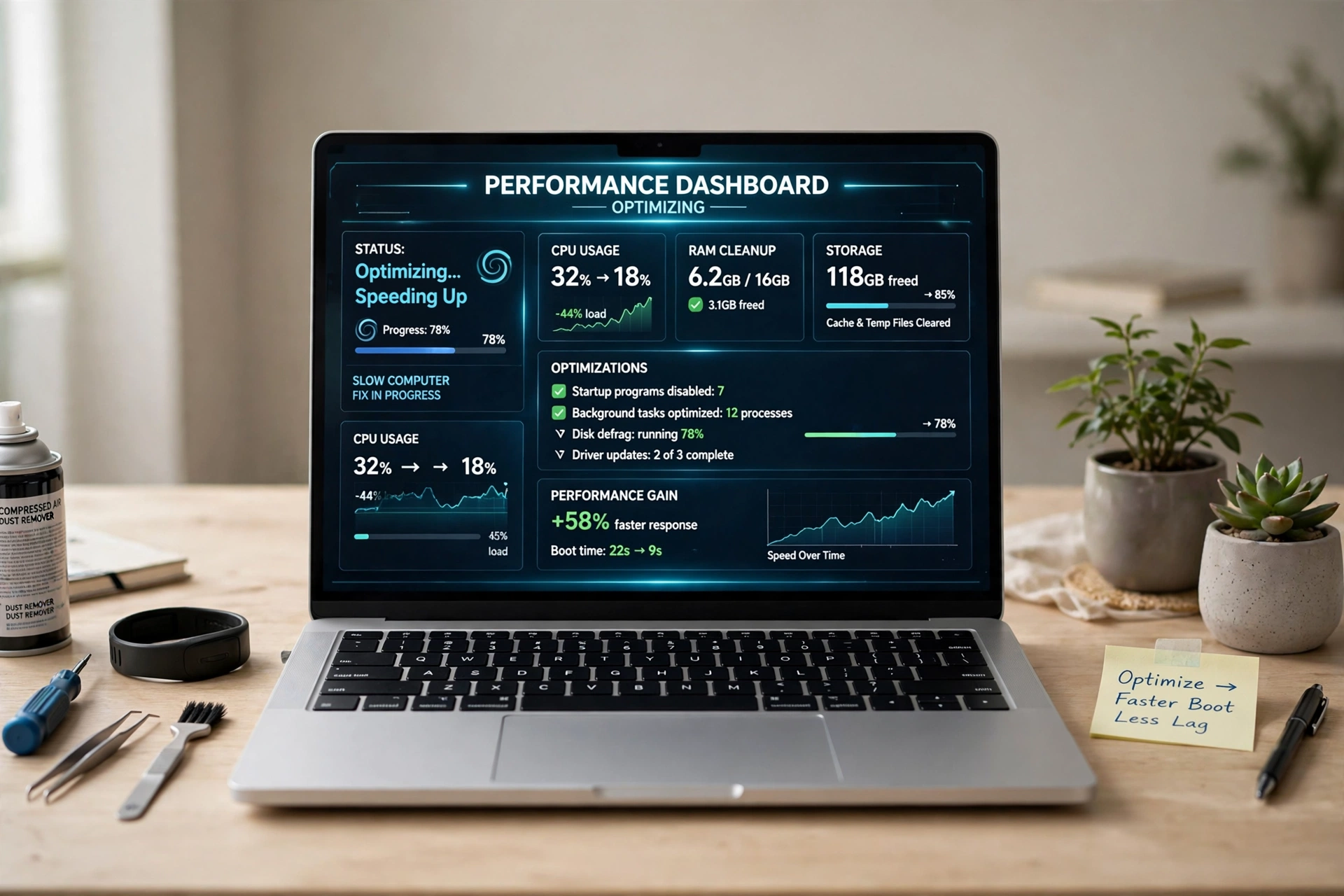
Every program launching at boot adds seconds to startup and sits in memory all day. On Windows, open Task Manager (Ctrl+Shift+Esc), go to Startup apps, and disable non-essentials like music apps and game launchers. On macOS, check System Settings → General → Login Items. Leave security and hardware-driver items alone. This single change often cuts boot time dramatically.
2. Free Up Disk Space
A nearly full drive slows everything — the OS needs free space for virtual memory and updates. Keep at least 10–15% free. Empty the trash, clear downloads, and uninstall programs untouched for months. Both Windows Storage settings and macOS Storage management show what’s eating space. Forgotten video files and old installers are the usual culprits.
3. Tame Your Browser Tabs and Extensions
Thirty open tabs plus a stack of extensions can eat gigabytes of RAM — on an 8GB laptop, that’s most of the machine. Close tabs you’re not using (bookmark them), remove extensions you don’t recognize, and enable your browser’s tab-sleep feature to unload inactive tabs. If the laptop crawls specifically while browsing, this is almost certainly why. Pair it with an efficient workspace like those in our budget home office setup guide.
4. Run a Malware and Adware Scan
Malware doesn’t always announce itself. Cryptominers and adware can silently consume CPU, making everything sluggish — if slowdown struck suddenly, scan early. Windows includes Microsoft Defender (run a full scan from Windows Security). On macOS, keep the system updated and run a reputable on-demand scan if behavior seems off. Remove anything flagged, restart, and reassess.
5. Install OS and Driver Updates
Updates include performance fixes, and outdated graphics or chipset drivers are a classic cause of stuttering. Check for updates, install, and actually restart (don’t just close the lid). On Windows, also check optional driver updates or your manufacturer’s support page. On macOS, use Software Update. Within your current OS version, security and performance updates are always worth installing.
6. Reduce Visual Effects
Transparency and animations cost GPU cycles — noticeable on older or budget hardware. On Windows, search “Adjust the appearance and performance of Windows” and choose “Adjust for best performance.” On macOS, reduce transparency and motion in Accessibility settings. You won’t miss the effects after a day, but you’ll feel the speed.
7. Check What’s Actually Slowing You Down
Open Task Manager (Windows) or Activity Monitor (macOS) and sort by CPU and memory. Often one culprit — a runaway browser process, a stuck updater — hogs everything. Fix that program (update, reinstall, or replace it) instead of tweaking a dozen unrelated settings. The Startup impact column also shows exactly which programs hurt boot time most.
8. Upgrade to an SSD — the Best Hardware Fix
If your laptop still has a spinning hard drive, swapping in a solid-state drive is the most transformative upgrade possible — boot times drop from minutes to seconds. SSDs are inexpensive now, and many laptops allow user replacement with a screwdriver (check your model’s guide; some ultrabooks have soldered storage). This one upgrade extends a laptop’s life by years.
9. Add More RAM If You Can
With too little RAM, the system shuffles data to the slower drive and everything stutters. 8GB is the practical minimum today; 16GB is comfortable. Check whether your model allows upgrades — many thin laptops have soldered memory. Where it applies, it’s a simple, cheap job. Do the SSD first; it helps every machine, while RAM helps most when you’re currently running out.
10. Clean Out Dust and Fix Overheating
Laptops deliberately slow down when hot (thermal throttling). Screaming fans, a very hot base, or performance dropping after 20 minutes point to heat. Blow dust from vents with compressed air (short bursts, machine off and cool), use the laptop on hard flat surfaces, and consider a stand for airflow. After years of use, a shop can replace dried thermal paste and often restore full performance.
11. Reinstall the Operating System
Years of leftover programs and drivers can leave a system sluggish beyond what cleanup fixes. A fresh install is the closest thing to a new laptop for free. Back up everything first — documents, photos, bookmarks, license keys. Both Windows (“Reset this PC”) and macOS (Erase + reinstall) have built-in tools. Reinstall only essentials afterward; the goal is starting clean. Gamers rebuilding fresh may like our beginner PC gaming setup guide for performance settings done right.
12. Switch to Lighter Software Alternatives
Some programs are simply heavy. Consider leaner options for daily tasks: fewer extensions, a lightweight PDF reader, or web apps instead of installed suites. You needn’t switch everything — just the programs you use most. Matching software appetite to hardware capability stops you fighting the machine.
13. Manage Cloud Sync and Background Services
Cloud sync, photo backup, game launchers, and auto-updaters sip resources continuously — and hammer CPU during big sync batches. Schedule heavy syncs for idle times or pause syncing during demanding work. You don’t need to kill them all; just close what you’re not using when you need maximum performance.
14. Check Battery and Power Settings
Laptops often throttle on battery-saver mode, degraded batteries, or weak third-party chargers. If it’s fast plugged in but slow on battery, check power settings — Windows’ battery-icon slider and macOS Battery settings both affect performance directly. A swollen battery (raised trackpad, case not sitting flat) is a safety issue: get it checked promptly.
15. Know When to Replace Instead of Repair
Consider replacing when the laptop can’t run a supported, secure OS; repairs would cost over half a replacement’s price; battery, screen, and keyboard are all failing; or your needs (video editing, modern games) exceed what upgrades can deliver. An SSD plus RAM is far cheaper than a new machine and suffices for browsing, office work, and media — but don’t sink money into a failing motherboard or obsolete processor.
Frequently Asked Questions
Will resetting my laptop delete my files?
Depends on the option — both systems offer keep-files resets, but a full clean install erases everything. Back up first regardless.
Is 8GB of RAM enough?
For browsing, office work, and streaming, yes. Video editing, virtual machines, or heavy multitasking warrant 16GB.
Does an SSD really make that much difference?
Yes — the most impactful upgrade for any laptop on a spinning drive. Boot times, app launches, and file operations all improve dramatically.